¶ License Activation
This guide explains how to activate your EGBoundary license after purchasing the software.
¶ Before You Begin
After purchasing a license:
- A license file will be sent to your registered email address
- Save the license file to a secure location on your computer
Supported license types:
- Node Lock Subscription
- Node Lock Perpetual
- Floating Subscription
- Floating Perpetual
¶ Step 1 — Open License Login Window
- Start your CAD application
- Create a new drawing
- Enter the following command:
EGBOUNDARY
- Press Enter
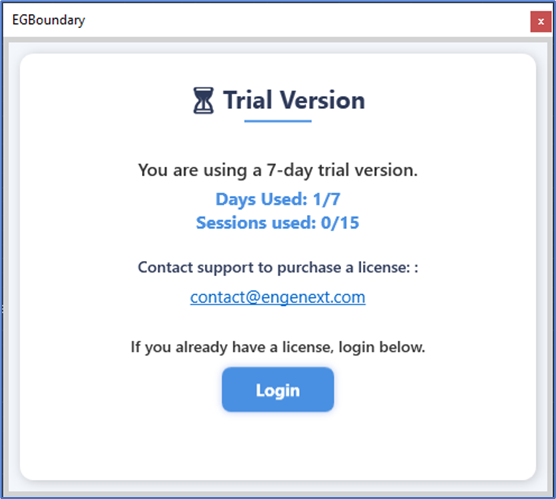
The EGBoundary trial/login dialog will appear.
¶ Alternative Login Method
If the trial dialog does not appear:
Enter:
EGLOGIN
This will directly open the EGBoundary Login window.
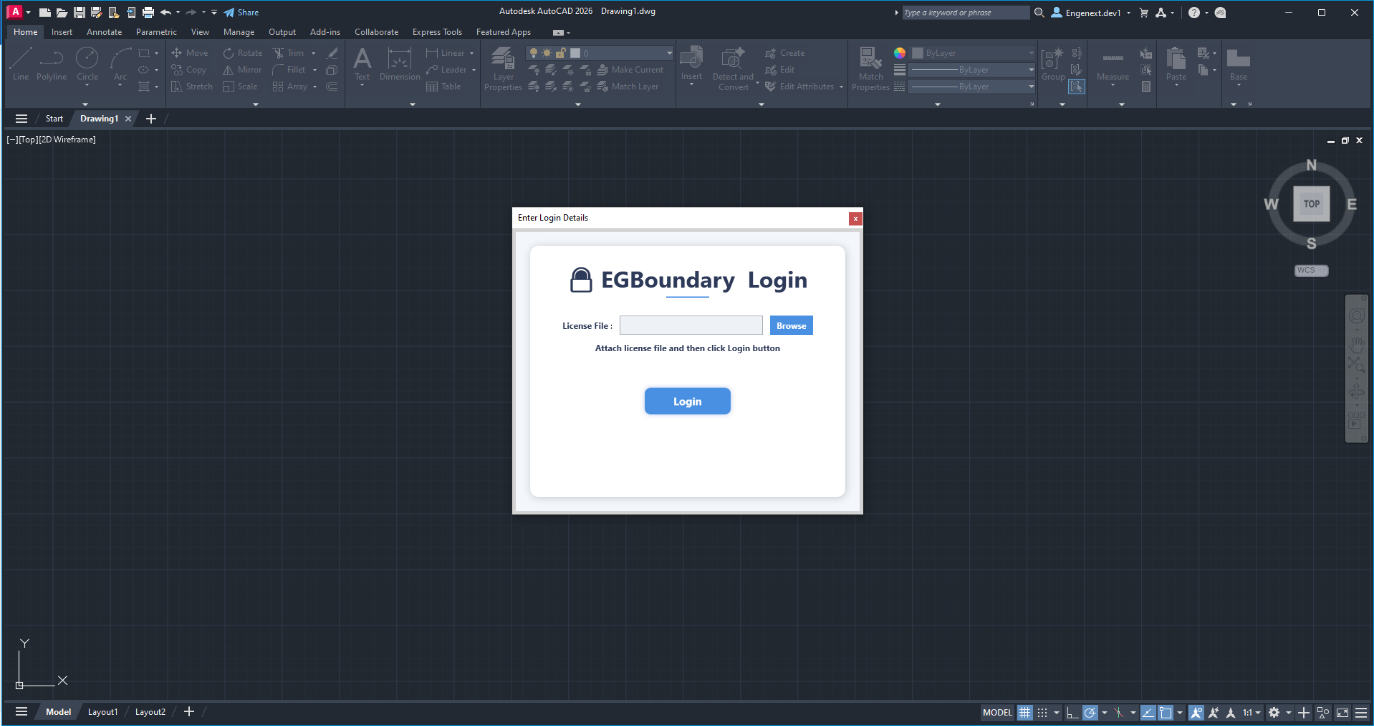
¶ Step 2 — Load License File
Inside the EGBoundary Login window:
- Click:
Browse
- Navigate to the license file received via email
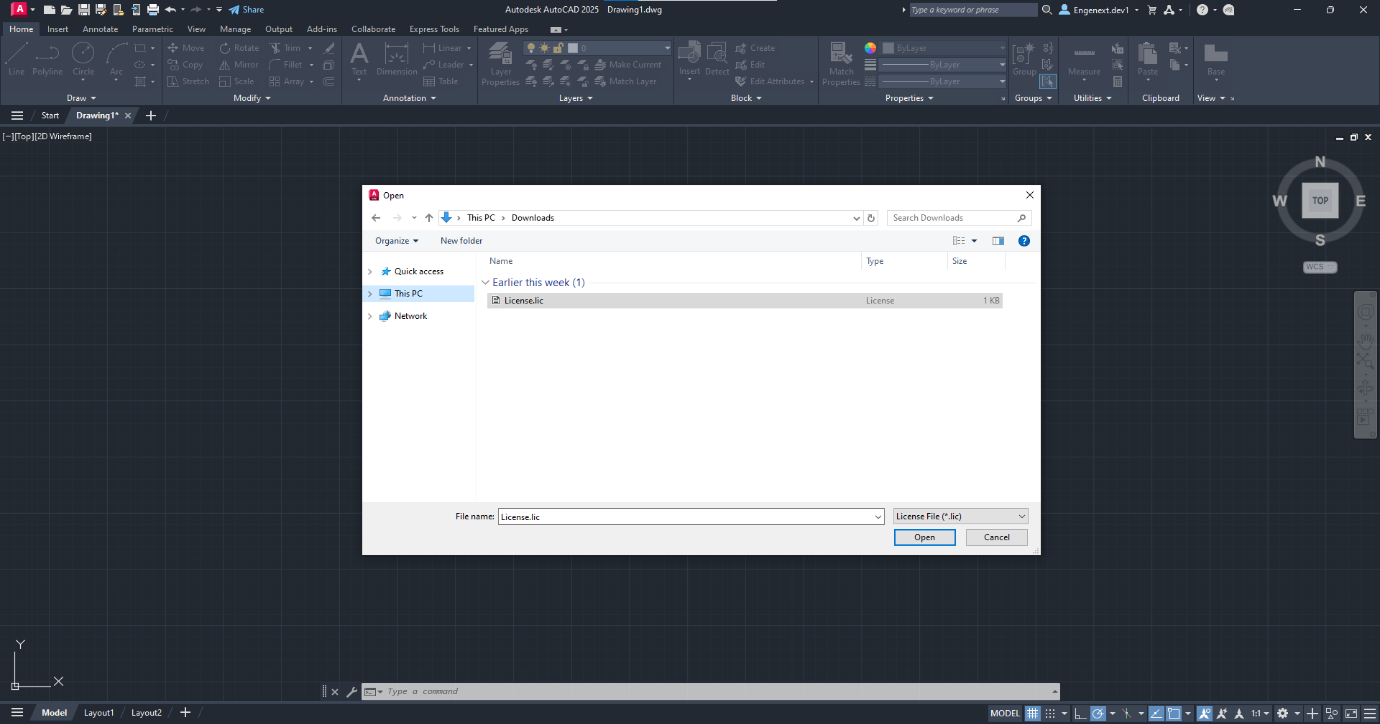
- Select the license file
¶ License File Validation
Once the correct file is selected:
- License validation begins automatically
- A confirmation message appears:
License file loaded successfully
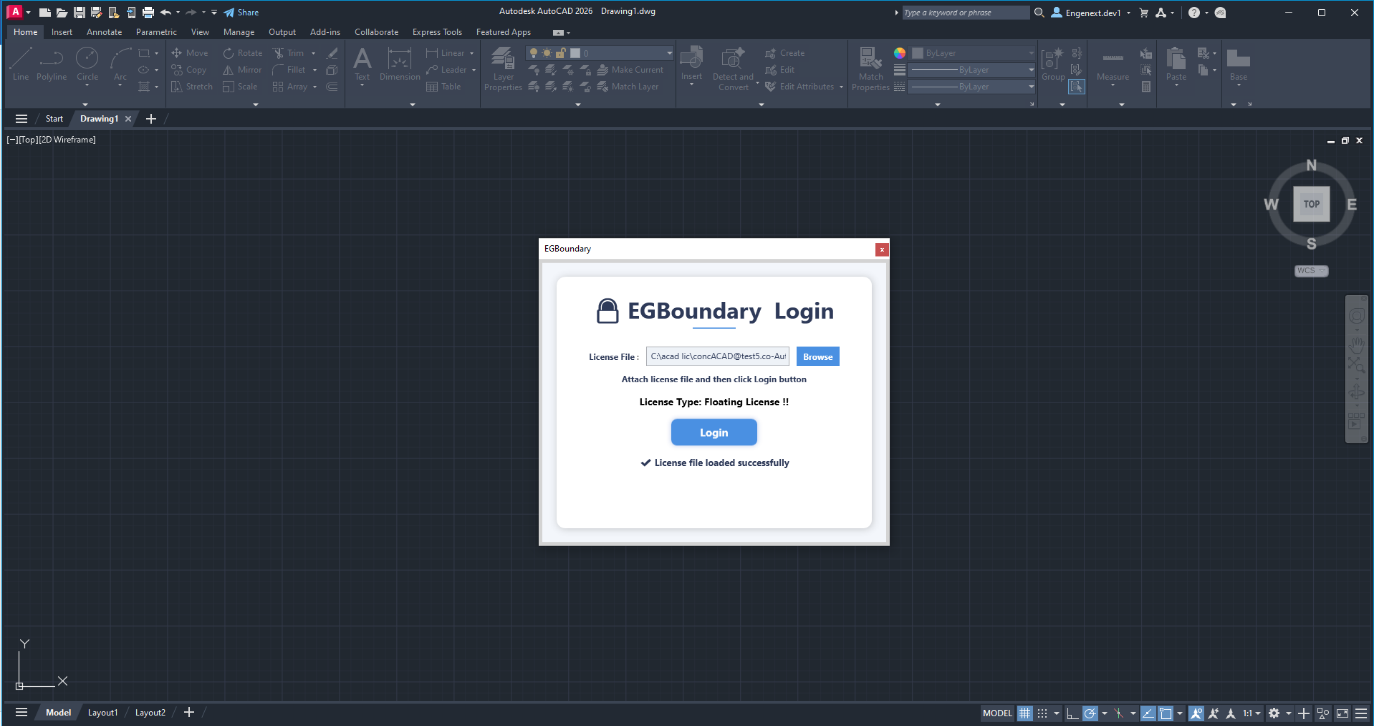
The detected license type will also be displayed.
¶ Step 3 — Activate License
- Click:
Login
- EGBoundary validates the license securely
- A confirmation dialog appears:
Login Successful
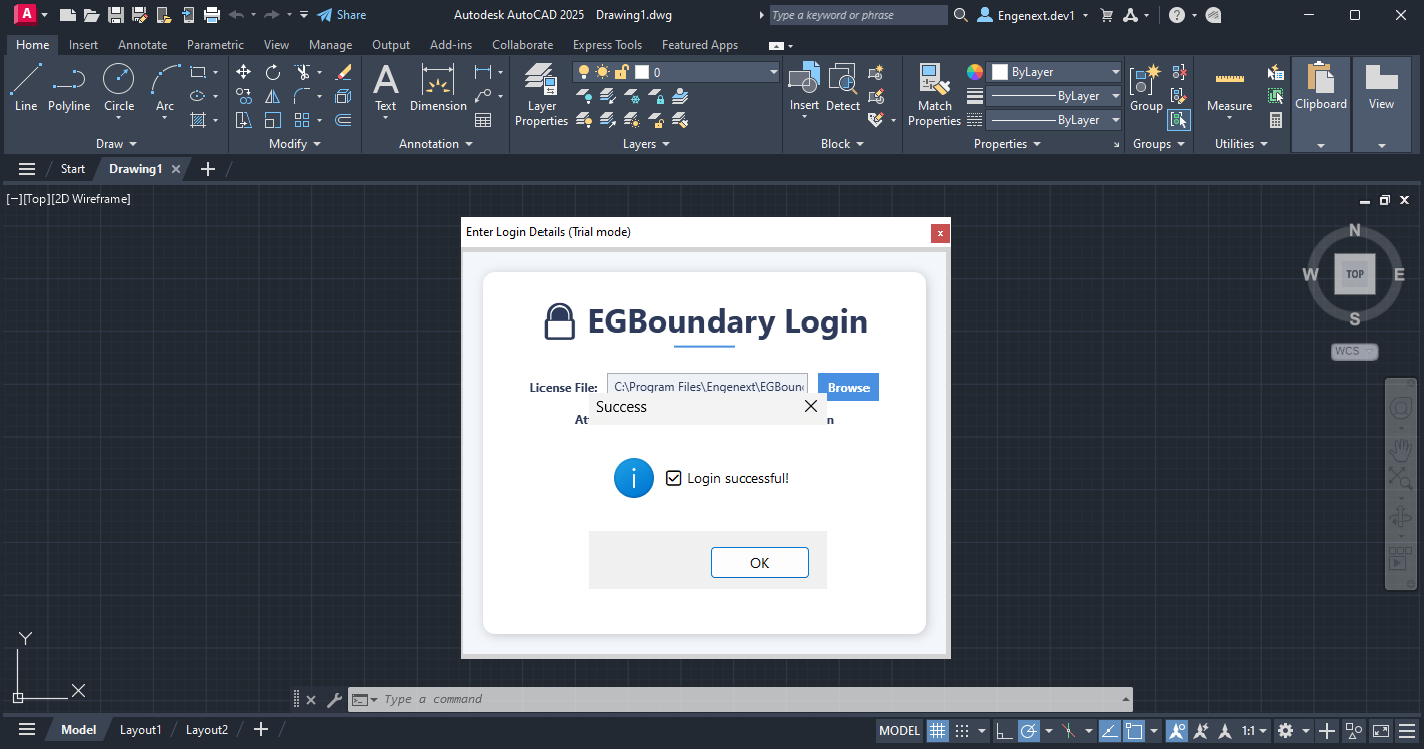
4. Click:
OK
The activation process is now completed successfully.
¶ Floating License Logout
Floating Licenses support manual logout functionality.
To release the active session:
- Enter:
EGABOUT
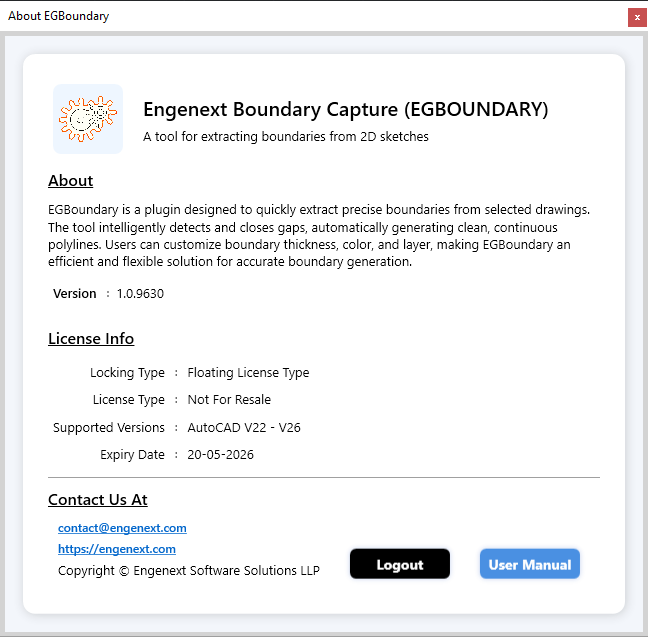
2. Click:
Logout
- A confirmation message appears:
Logout Successful
The license is now available for activation on another system.
¶ Important Notes
¶ Internet Requirement
License activation requires:
- Stable internet connection
- Valid license file
- Supported CAD version
¶ Trial Version Behavior
The trial dialog may appear:
- Once per day
- Until successful activation
You can always reopen login using:
EGLOGIN
¶ Supported CAD Platforms
| CAD Software | Supported Versions |
|---|---|
| BricsCAD | V22 – V26 |
| AutoCAD | V20 – V27 |
| ZWCAD | V24 – V26 |
| GStarCAD | V24 – V27 |
¶ Troubleshooting
¶ License File Not Detected
Ensure:
- Correct file is selected
- File is not modified
- Internet connection is active
¶ Login Failed
Possible reasons:
- Invalid license file
- Expired subscription
- Concurrent session already active
- Unsupported CAD version
- No internet connection
¶ Support
For activation or licensing support: